What question templates do
If you run the same survey every matchday or a weekly score predictor, you shouldn't have to retype the questions every time. A template saves a set of questions so you can drop them into a new campaign and edit from there.
Templates work with two campaign types: Survey and Prediction. Each template holds between one and three questions and remembers whether it's a survey or a prediction set.
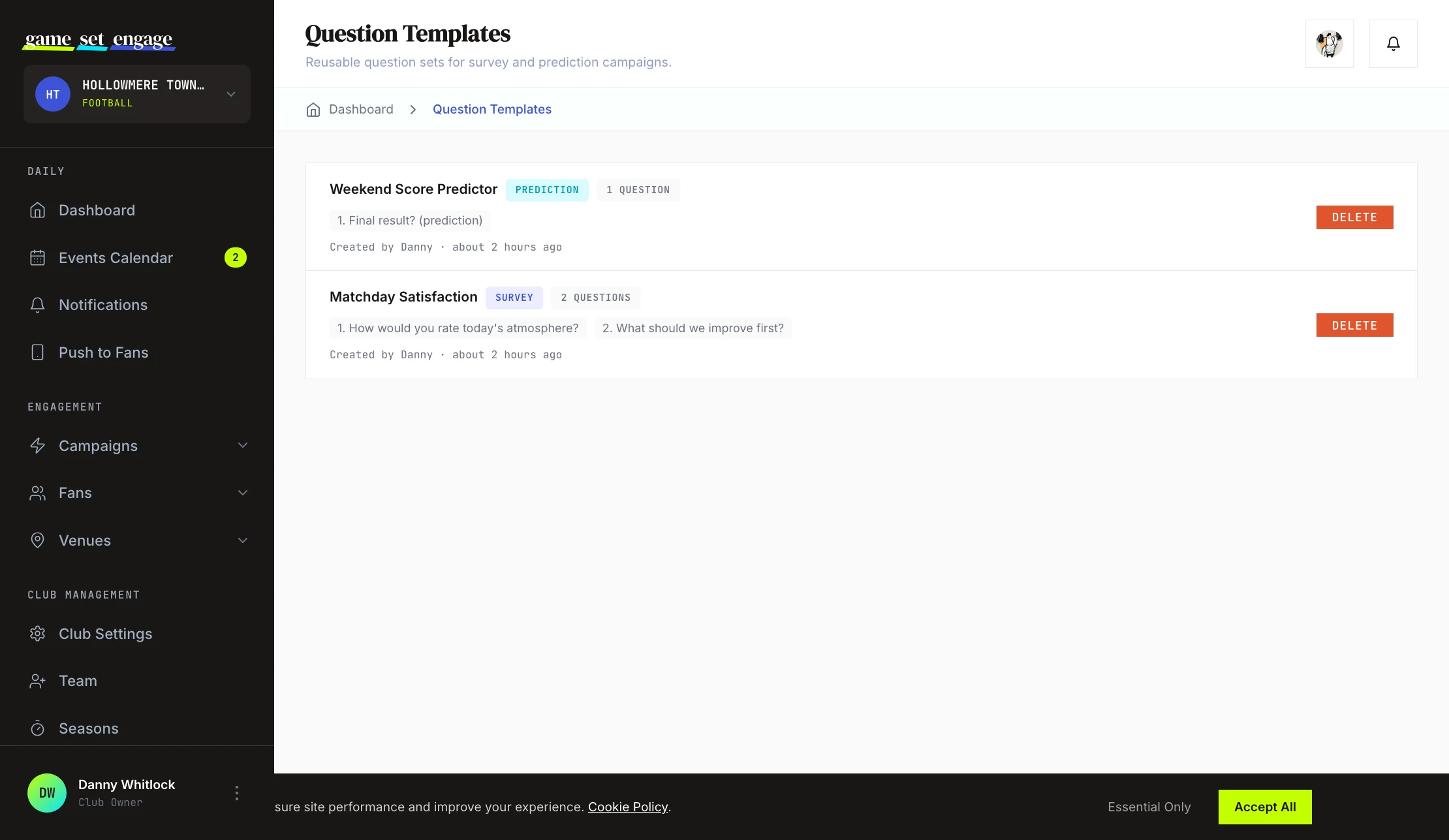
You'll find them under Campaigns → Templates in your dashboard, on a screen titled Question Templates.
Save a campaign's questions as a template
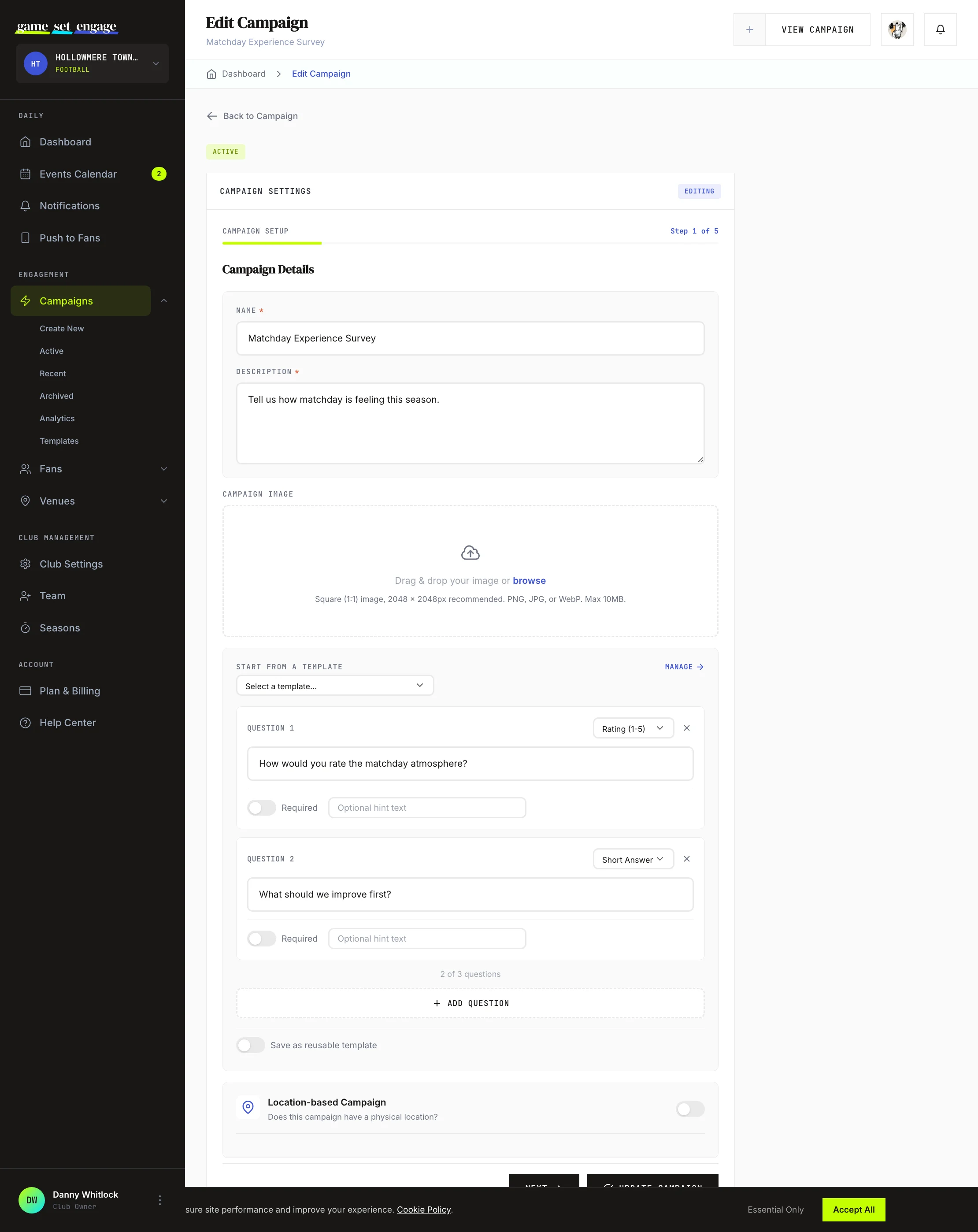
You create templates while building a survey or prediction campaign, not from a separate form.
- Open Campaigns → Create New and choose Survey or Prediction
- Add your questions in the question builder
- Turn on Save as reusable template and give it a name
- Publish or save the campaign as usual
The questions are saved as a template at the same time. The template type matches the campaign you built it in — a survey campaign makes a survey template, a prediction campaign makes a prediction template.
Tip: Name templates for the job they do, not the date — "Matchday satisfaction" or "Weekend score predictor" — so you recognise them at a glance next season.
Start a new campaign from a template
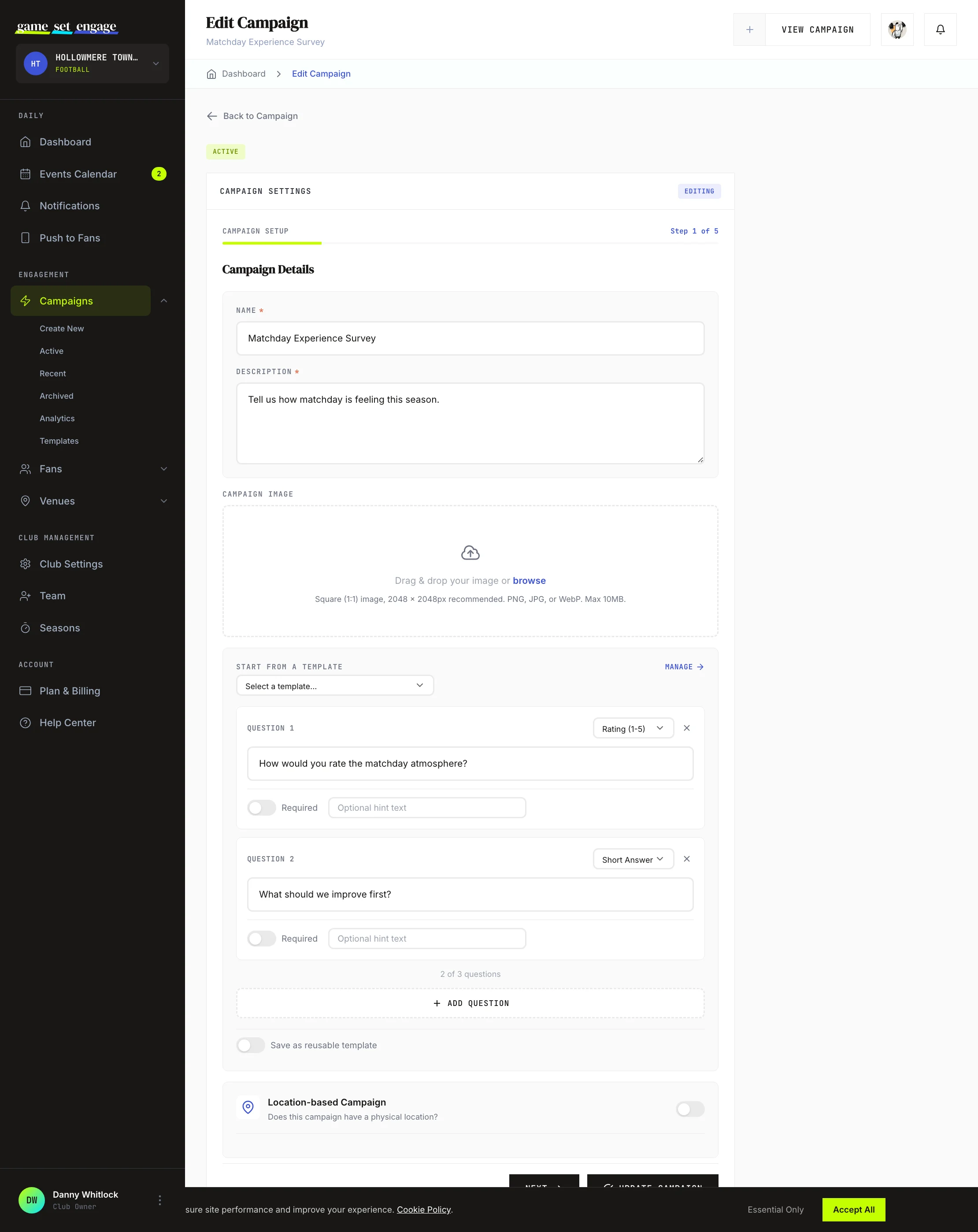
When you build a survey or prediction campaign and you already have matching templates, the builder shows a Start from a template picker above the questions.
- In the question builder, open the Start from a template dropdown
- Choose a saved set — the questions load straight into the builder
- Edit anything you want before you publish
The picker only shows templates that match the campaign type you're building: survey templates for survey campaigns, prediction templates for prediction campaigns.
Manage your templates
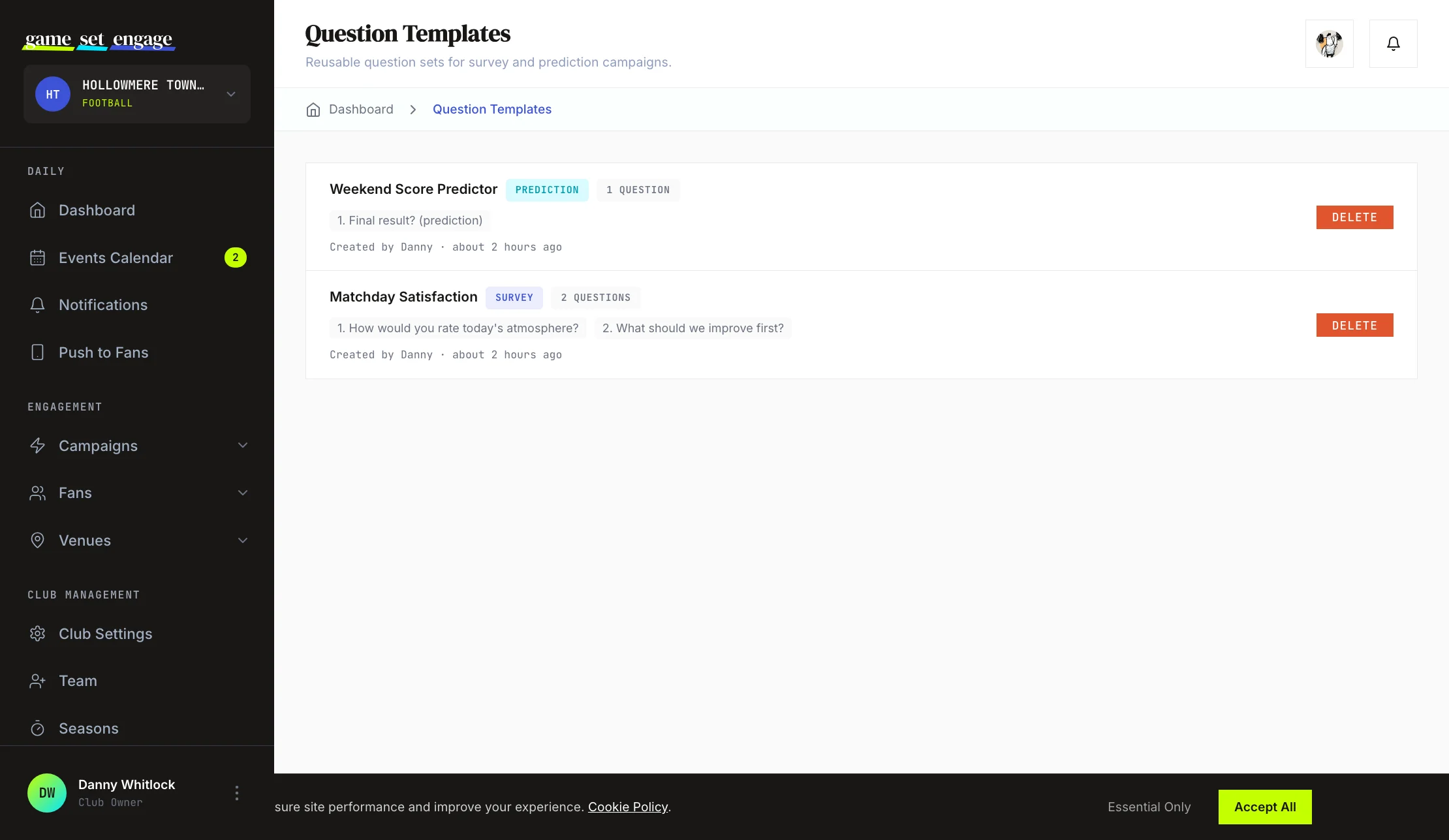
The Question Templates screen lists every template your club has saved, newest first. For each one you see:
- Its name and a badge for its type — Survey or Prediction
- How many questions it holds
- A preview of each question, tagged (quiz) when it has a set correct answer or (prediction) when the answer is decided after the event
- Who created it and when
To remove a set you no longer use, select Delete. Deleting a template doesn't touch any campaign already built from it — those questions stay exactly as they were.
What's next
- Surveys and predictions — build the questions that become your templates
- Creating your first campaign — the full campaign builder, step by step
- Managing and publishing campaigns — drafts, publishing, and the campaign lifecycle
- Campaign analytics and reports — read your survey and prediction results